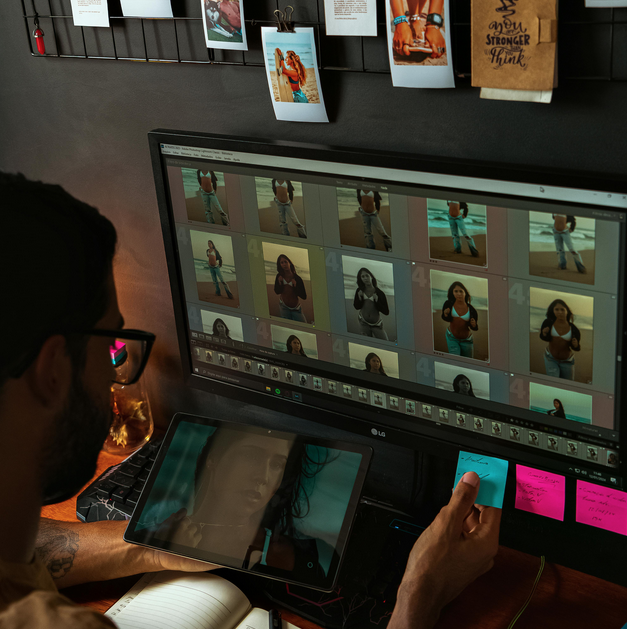
Short answer: Yes, ChatGPT can edit photos — but it doesn’t edit them the way Photoshop does. It re-generates a version of your image based on what you asked it to change, which means the result usually resembles your original while not being pixel-identical.
Understanding this distinction is the difference between being delighted by ChatGPT’s image editing and being frustrated by it. This guide covers exactly what ChatGPT can and can’t do with photos in 2026, how to use the built-in editor, what to expect in terms of quality, and when to stop trying and open Photoshop instead.
How ChatGPT’s photo editing actually works
Most photo editing tools (Photoshop, Lightroom, Canva) manipulate the existing pixels of your image — they change the red channel, blur this area, remove that object. The original image data is preserved everywhere you didn’t touch.
ChatGPT works differently. When you ask it to edit a photo, the AI (powered by GPT-Image-1.5 as of 2026) looks at your image, understands what’s in it, and then generates a new image that matches your description. It’s not editing pixels — it’s re-imagining the photo based on your prompt.
This is why the same request that takes Photoshop 3 seconds can produce strange results in ChatGPT: the model might give you a slightly different face, a hand posed differently, or text that reads “Welcom” instead of “Welcome.”
The 2026 image model is dramatically better at preserving likeness, composition, and fine details than earlier versions — but it’s still regeneration, not editing. Keep that in mind and the tool becomes genuinely useful.
What ChatGPT can edit well (things it actually handles)
These are the edits where ChatGPT consistently produces good results in 2026:
Style transfers. “Make this photo look like a 1970s Polaroid.” “Convert this to pencil sketch.” “Apply an anime style to this portrait.” ChatGPT is strong at applying an entire aesthetic to an image, because that’s a task that benefits from regeneration rather than pixel-level precision.
Adding or removing objects. “Remove the person walking in the background.” “Add a dog sitting next to the woman.” “Take out the lamp post on the right.” The new selection-tool editor makes these genuinely workable — you highlight the area and describe the change.
Background changes. “Put this portrait on a beach.” “Change the background to a minimalist studio setup.” “Make the background blurry like a professional photo.” ChatGPT keeps the subject intact while regenerating the backdrop.
Clothing and hairstyle swaps. The 2026 model handles this meaningfully better than earlier versions — try-ons for different outfits, colors, and hairstyles work, though they’re not always accurate to real products.
Combining multiple images. Upload two photos and ask ChatGPT to merge them — “put the man from the first photo into the setting of the second photo.” Composite work like this is a genuine strength.
Color grading and mood shifts. “Make this warmer and more golden-hour.” “Apply a cool, cinematic look.” “Make it feel like autumn.” Tonal shifts work well because they’re about feel, not pixel precision.
Adding text to images. The new model handles readable text inside images far better than older versions — signs, captions, posters, and banners come out legibly most of the time. Still not perfect, but usable.
Cartoon and illustration styles. Converting photos into various illustration styles (anime, pixel art, oil painting, 3D render) is arguably where ChatGPT shines most.
What ChatGPT struggles with (and what you should use other tools for)
Be honest with yourself about these limitations before you waste an hour trying:
Preserving exact faces. Even with the improved 2026 model, ChatGPT can’t guarantee that the person in your output is pixel-identical to the person in your input. It’s usually close — but if you’re editing a wedding photo or a client headshot, “close” isn’t good enough.
Text that already exists in the photo. Ask it to “clean up the image” with text in it (a storefront sign, a book cover, a menu), and the text often mutates into gibberish. ChatGPT doesn’t know it’s supposed to preserve the exact characters; it regenerates the whole scene.
Exact color matching. If you need a specific shade or a brand-accurate color, ChatGPT will get close but not exact. Professional work still requires Photoshop’s eyedropper and color values.
Small, precise edits. “Remove the tiny blemish on the left cheek.” ChatGPT often does this by regenerating the whole face, which can change the jawline or eye shape in the process. For precise spot-removal, use a dedicated tool.
Pixel-level manipulations. Masking, layers, precise selections, non-destructive editing, curves, levels — ChatGPT has none of this. If your workflow depends on any of them, this isn’t your tool.
Product photography. Changing the background of a product photo while keeping the product absolutely accurate (correct logo, exact dimensions, unchanged details) is where ChatGPT reliably disappoints. Stick to Photoshop’s generative fill or a dedicated product-photo tool.
RAW files. ChatGPT doesn’t accept RAW formats. You’ll need to export to JPG or PNG first.
High-resolution output. ChatGPT’s generated images max out around 1024×1536 or 1536×1024. For print-ready work at 300 DPI, you’ll need to upscale separately (tools like Topaz or an upscaler model).
How to edit a photo in ChatGPT (step-by-step)
The process is slightly different depending on whether you’re editing an image you uploaded or one ChatGPT generated.
Method 1: Edit a photo you uploaded
Step 1. Open ChatGPT on web or mobile and start a new chat.
Step 2. Upload your photo by clicking the + icon (or paperclip) and selecting the file. If this step is giving you trouble, our guide on how to upload images to ChatGPT walks through every upload method.
Step 3. In the same message, describe the edit you want. Specificity matters — “make the sky more dramatic with storm clouds rolling in at sunset” works far better than “make it look cooler.”
Step 4. ChatGPT generates an edited version. Review it for:
- Did the subject stay recognizable?
- Did any text in the image get garbled?
- Does the lighting look consistent across the edit?
Step 5. Iterate. “Keep everything the same but make the sky slightly warmer” is a fast way to dial in results without starting over.
Method 2: Use the built-in image editor (for generated images)
OpenAI added a proper selection-tool editor in 2025, and by 2026 it’s rolled out to most users on web and mobile.
Step 1. Have ChatGPT generate an image first (or click on an image it already generated in the conversation).
Step 2. On web, click the image to open the editor. On mobile, tap the image, then tap Edit.
Step 3. Use the Select tool to highlight the specific area you want to change. You can adjust the brush size to select broad areas or small details.
Step 4. Describe your change in the text box — “replace this with a wooden chair” or “remove this object entirely.”
Step 5. Use Undo / Redo buttons if an edit doesn’t land right. The Cancel button starts the selection over.
Step 6. Save the result or continue iterating. Saved images go to your chat history.
One thing worth knowing: the highlight selection isn’t perfectly precise. Edits can “bleed” slightly beyond your selected area. If that matters, plan to do a final clean-up pass in another tool.
Method 3: Photoshop for ChatGPT (Adobe integration)
Adobe released a native Photoshop integration for ChatGPT in early 2026. If you have an Adobe Creative Cloud account, you can summon Photoshop-powered editing from inside ChatGPT.
How it works: inside ChatGPT, invoke the Photoshop connector (available in the GPTs/Tools menu). You can then apply Photoshop’s actual editing engine — not just regeneration — to your image. Think of it as getting Photoshop’s precision with ChatGPT’s natural-language interface.
What you can do:
- True non-destructive edits
- Exact color adjustments
- Precise object selection and removal
- Continue editing in full Photoshop on the web with one click
The catch: you need an Adobe Creative Cloud subscription. If you already have one, this is the most powerful photo editing setup available inside ChatGPT.
Prompts that actually work (tested examples)
Prompt quality determines output quality more than anything else. Here are prompt patterns that consistently produce good edits:
For background changes:
“Keep the person in the photo exactly as they are. Replace the background with a minimalist white studio backdrop with soft, even lighting. Match the lighting on the person to the new background.”
For object removal:
“Remove the car parked on the right side of the street. Fill in the space with more of the existing building and sidewalk, matching the lighting and perspective.”
For style transfers:
“Convert this photo into the style of a 1990s film photograph. Slight grain, warm color tones, slightly faded highlights. Keep the composition and subject identical.”
For adding elements:
“Add a golden retriever sitting next to the woman, looking up at her. The dog’s fur should be slightly backlit to match the existing sunlight direction in the photo.”
For color and mood:
“Warm up the overall tone. Push shadows slightly blue and highlights slightly gold. Give it a cinematic, anamorphic feel. Don’t change anything about the composition.”
For combining images:
“Use the background from the first image and place the person from the second image into it. Match the lighting and perspective so the person looks naturally part of the scene.”
Three principles that apply to every prompt:
- Say what to keep, not just what to change. “Keep the subject identical” prevents ChatGPT from over-editing.
- Describe lighting direction and mood. The difference between flat and cinematic output is usually in the lighting prompt.
- Iterate in small steps. Three small edits beat one giant edit almost every time.
ChatGPT photo editor vs. traditional editors: when to use which
| Task | Use ChatGPT | Use Photoshop/Lightroom | Use Canva |
|---|---|---|---|
| Quick style change | ✅ | ❌ | ⚠️ |
| Professional retouching | ❌ | ✅ | ❌ |
| Add/remove objects | ✅ | ✅ | ⚠️ |
| Background replacement | ✅ | ✅ | ✅ |
| Color correction | ⚠️ | ✅ | ⚠️ |
| Social media graphics | ⚠️ | ❌ | ✅ |
| Print-ready work | ❌ | ✅ | ⚠️ |
| Creative reinvention | ✅ | ❌ | ❌ |
| Product photography | ❌ | ✅ | ⚠️ |
| Face/portrait editing (precise) | ❌ | ✅ | ❌ |
| Fun effects and experiments | ✅ | ❌ | ✅ |
The real win is combining tools. A common workflow in 2026:
- Use ChatGPT to reimagine a photo into a style or concept
- Take the result into Photoshop or Lightroom for color correction and precision fixes
- Drop the final version into Canva for layout and text
You get ChatGPT’s creativity, Photoshop’s precision, and Canva’s design efficiency — without forcing any one tool to do what it’s bad at.
Is it safe to edit personal photos with ChatGPT?
A few things worth knowing before you upload sensitive images:
Privacy settings. By default, free and Plus users’ uploaded images may be used to improve OpenAI’s models. You can disable this in Settings → Data Controls → “Improve the model for everyone.” On Enterprise and Team plans, content is never used for training.
Faces of real people. ChatGPT often refuses or modifies edits of identifiable people, particularly celebrities or public figures. This is intentional and not a bug — it’s a privacy safeguard. Edits of your own photos usually go through fine.
Children’s photos. ChatGPT is especially conservative with images of minors. Edits will be refused or heavily watermarked if the AI detects a child in the photo. This is appropriate and not something to fight against.
Documents with personal info. Never upload a driver’s license, passport, medical record, or any image containing passwords, SSNs, or financial info to ChatGPT for “editing.” Redact the sensitive parts first.
Copyrighted material. Editing a photo of a branded product or copyrighted character can produce inconsistent results — the model sometimes refuses, sometimes blurs the brand, sometimes reinvents it. For commercial work involving brands, tread carefully.
Common problems and fixes
“The face came out looking different.” This is the most common complaint. The 2026 model is better but not perfect at likeness preservation. Fix: use smaller, more targeted edits (the selection tool rather than whole-image prompts), or finish the edit in Photoshop.
“The text in my image became gibberish.” ChatGPT sometimes regenerates text it wasn’t asked to change. Fix: explicitly say “keep all existing text identical” in your prompt, or avoid whole-image edits on text-heavy images.
“The image resolution is lower than my original.” ChatGPT outputs at a fixed resolution (usually around 1024×1536). Fix: run the output through an upscaler (Topaz Gigapixel, Let’s Enhance, or a dedicated upscaler model) before using it for anything that needs high resolution.
“ChatGPT refused to edit my photo.” Most common reasons: face of a real public figure, children in the photo, potentially copyrighted content, or content flagged by the safety filter. Fix: try a different image or reframe the request.
“The edit doesn’t match the rest of the image.” Usually a lighting mismatch. Fix: add “match the lighting direction and intensity of the rest of the photo” to your prompt.
“I can’t upload my RAW file.” ChatGPT doesn’t accept RAW formats. Fix: export as JPG or PNG first from your camera software or Lightroom.
Frequently asked questions
Can ChatGPT edit photos for free? Yes, but with significant limits. Free users get a handful of image generations and edits per day (tied to the GPT-4o/GPT-5 usage cap). Plus ($20/mo) lifts the cap meaningfully. Pro ($200/mo) is effectively unlimited.
Does ChatGPT save my edited photos? Yes — edited images are saved in your chat history. You can also explicitly save or download each one from the image’s context menu. Don’t rely on chat history alone for anything important; download the file.
Can ChatGPT remove backgrounds from photos? Yes, though dedicated tools (Remove.bg, Photoshop, Canva) are generally more precise. ChatGPT works well when you want to replace the background with something specific, not just delete it.
Can I edit a photo without generating a new one? Not really — every edit is a regeneration, even through the selection tool. The edit is localized to your selected area, but it’s still AI-generated rather than pixel-manipulated. For true non-destructive editing, use the Photoshop for ChatGPT integration or Photoshop directly.
Is ChatGPT a replacement for Photoshop? No. ChatGPT is a creative collaborator — brilliant for reinvention, style transfer, and conceptual edits. Photoshop is a precision tool — irreplaceable for retouching, color accuracy, and professional output. Most serious creators use both.
Can ChatGPT edit videos? Not yet in 2026. ChatGPT can analyze individual frames you extract, but full video editing isn’t natively supported. For AI video editing, look at Runway, Pictory, or Descript.
Is there a limit to how many photos I can edit per day? Yes, though it’s not published clearly. Free users hit limits fastest (often just a few edits per day). Plus users can realistically edit 30–100 photos per day before soft throttling. Pro users are effectively unlimited.
Does ChatGPT work with iPhone HEIC photos? Yes — HEIC is a supported format for uploads. You don’t need to convert to JPG first.
ChatGPT in 2026 is a genuinely useful photo editor — as long as you understand that it’s a creative AI collaborator, not a pixel-level precision tool. Use it for style transfers, object additions, background swaps, and creative reinvention. Fall back to Photoshop for retouching, exact color work, and anything that has to stay pixel-identical to the original.
For more on getting the most out of ChatGPT, check our guides on uploading images to ChatGPT, fixing the “Error in message stream” issue, and ChatGPT’s file upload limits — which all come up frequently when you’re doing serious image work inside ChatGPT. If you’re looking to generate images from scratch rather than edit existing ones, our roundup of the best free AI image generators in 2026 covers the top alternatives.